
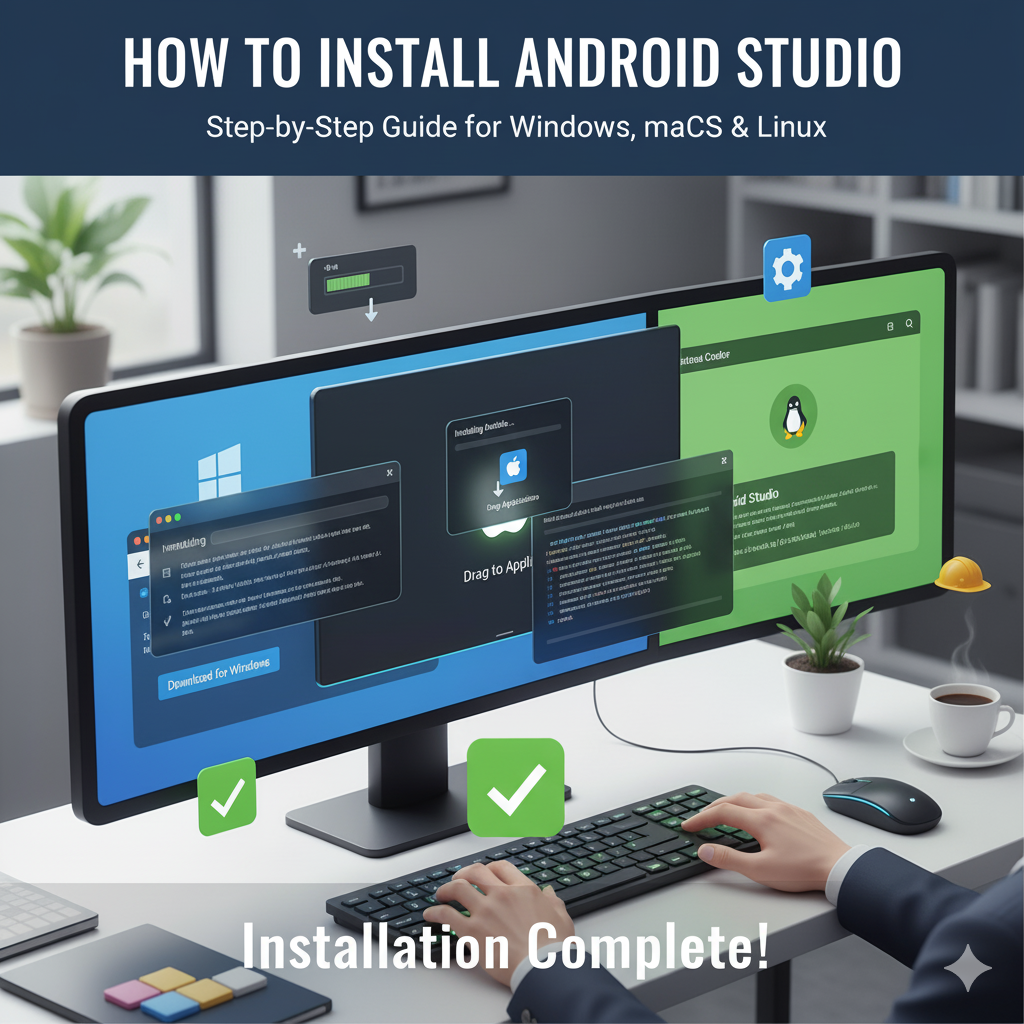

How to Install Android Studio
Android Studio is the official Integrated Development Environment (IDE) by Google for Android app development. Installing it properly ensures you can build, test, and run Android apps smoothly. Below is a detailed guide covering Windows, macOS, and Linux, along with system requirements, configuration, and troubleshooting.
System Requirements
Before installation, make sure your system meets the minimum requirements. Android Developers+2Android Developers+2
| Component | Minimum | Recommended |
|---|---|---|
| OS | 64-bit Windows 8/10/11; macOS 12 (or newer); any 64-bit Linux with modern desktop environment. Android Developers+2Android Developers+2 | Latest version of OS, updated kernel/drivers. Android Developers |
| RAM | 8 GB | 16 GB or more (especially if using emulator) Android Developers |
| Disk space | At least 8 GB free (for IDE alone) Android Developers+2Android Developers+2 | 16-20 GB+ (with SDKs, emulator images etc.) |
| Screen Resolution | Minimum 1280×800 Android Developers+1 | Full HD or more for better usability |
| CPU / Virtualization | 64-bit CPU; virtualization support (VT-x / AMD-V) enabled for emulator performance; modern CPU generation preferred. Android Developers | More cores / higher clock speed improves build times and emulator usage |
Step-by-Step Installation
Below are the steps to install Android Studio on each supported OS.
Windows
- Go to the official Android Studio download page. Android Developers+1
- Download the
.exeinstaller for Windows. Accept the license agreement. Android Developers+1 - Run the installer. If prompted by User Account Control (UAC), allow it. Android Developers+1
- Choose installation directory; allow it to install required SDK components. Android Developers+1
- Once installation completes, launch Android Studio. It will run a Setup Wizard asking to import settings (if upgrading) or start fresh. Android Developers+1
- Choose the install type (Standard is usually fine for most users), download Android SDK components, select API levels. Android Developers+1
- Configure theme (light or dark), emulator options, etc. Then finish setup and start a new project. Android Developers
macOS
- Download the
.dmgfile for macOS from the official site. Android Developers+1 - Open the
.dmg, drag Android Studio into your Applications folder. Android Developers+1 - Launch Android Studio. If upgrading, choose whether to import previous settings. Android Developers+1
- Complete the Setup Wizard: accept the license, install SDK components, choose API levels, emulator configurations. Android Developers
- Choose theme, setup preferences, and start a new project. Android Developers
Linux
- Download the
.tar.gzpackage for Linux from the official Android Studio website. Android Developers+1 - Extract it to a suitable directory (e.g.
~/android-studioor/opt/android-studio). Android Developers+1 - Navigate to
android-studio/binand runstudio.sh. Android Developers+1 - On first launch, follow the Setup Wizard: SDK components, theme, emulator options. Android Developers
- Optionally, create a desktop entry for easier launching. Android Developers
Tips & Configuration
- Always verify virtualization (VT-x or AMD-V) is enabled in BIOS/UEFI for better emulator performance.
- Keep Android SDK, tools, and emulator images updated via SDK Manager inside Android Studio.
- Use a physical device for testing when emulator performance is slow.
- For large projects – ensure you have sufficient disk space and RAM.
FAQ (Frequently Asked Questions)
Q1: Do I need to install JDK separately?
A: In most recent versions, Android Studio bundles its own JDK. Unless you’re using some special plugin or version that requires a specific JDK version, you need not install a separate JDK. Android Developers+1
Q2: What if Android Studio is stuck during loading or setup?
A:
- First, make sure your machine meets the minimum system requirements.
- Ensure virtualization is enabled if using emulator.
- Try waiting; sometimes initial indexing or component downloads take time.
- Delete corrupted settings or caches (via Android Studio → Restart with Clean Cache).
Q3: Which install type is better – Standard vs Custom?
A: For beginners or most developers, Standard is sufficient. It includes most commonly used SDKs, tools and emulator images. Custom is useful if you want only specific SDK/platforms (e.g. older Android versions) and want to save disk space.
Q4: Can I install Android Studio on an older OS (e.g. Windows 7, older macOS)?
A: Possible, but not recommended. Some newer Android Studio versions drop support for older OS versions; also newer tools (emulator, SDK) might not function properly. Always check the official system requirements page before installing. Android Developers+1
Related Searches
Here are some popular related search queries users often look for:
- how to install android studio on windows 10
- install android studio on mac
- android studio setup linux
- android studio minimum requirements
- android studio emulator setup
- how to update android studio
- android studio offline installation
- how to install sdk in android studio
- android studio vs intellij ide
- troubleshooting android studio installation error
Meta Description: Learn how to install Android Studio on Windows, macOS, or Linux in easy steps. Find system requirements, download instructions, setup tips, FAQs & fixes to common installation issues.
Category: Android Development / Software Setup
Tags: Android Studio, IDE, Android Development, Setup Guide, Install Android Studio, SDK, Emulator, Windows, macOS, Linux